Edit Group
The Edit Group page allows you to manage group information.
Contents:
Use the Customize Fields button at the top of the page to choose which fields display and in what order on the page. Click Add Fields to select more fields to display.
Select the View Availability button to see which rooms are available for the selected reservation dates.
Group information
Set up status and details of the group.
-
Enter a group code in the Group Code field.
-
Enter the group name in the Group Name field.
-
Select the reservation status of the group from the Group Status drop-down.
-
If applicable, select the group's booking method from the Booking Method drop-down.
-
Enter any requests or comments in the Special Instructions field. Maximum character amount is 1000.
-
(Optional) Click View More to view more fields:
-
Active or Inactive
-
Category
-
Group Alias
-
PMS Code
-
PMS Group Code
-
External Catering Code
-
Short and Long Description
-
Group contact
Edit or create a contact record that can be assigned to the group profile.
-
Click Search Contacts to search for a specific guest to add to the group contact; OR
-
Enter new guest information in the following fields to update the contact details:
-
Select a prefix from the Prefix drop-down.
-
Enter the group's primary contact person's first name in the First Name field.
-
Enter the primary contact's last name in the Last Name field.
-
Enter the primary contact's phone number in the Phone Number field.
-
Enter the primary contact's email address in the Email field.
-
(Optional) Click View More to view more fields:
-
Address
-
Country
-
Postal Code
-
City
-
Fax
-
-
Market assignments
-
Select the market source from the Market Source drop-down.
-
Select the market segment from the Market Segment drop-down.
Room assignments
Check the boxes for each room type you wish to assign to the group.
Group blocks
Once a room has been assigned:
-
Click Add Block to start a new block, or edit an existing block.
-
Update the Block Name.
-
Update the Start and End Date fields.
-
Select an option from the Cutoff Type drop-down.
-
Select the Cutoff Date from the calendar icon.
-
In the Rates tab, set the room base price, if it includes tax, and add shoulders or set offsets.
-
In the Product Allocations tab, click the Show Sell Limit checkbox to display the sell limit. Click between the Date and Day of Week tabs to view room information for specific days.
Payment
-
Select the Group pays or Individual pays radio option.
-
Select the Routing Code from the drop-down.
-
Select the folio from the Route To drop-down.
-
Select the guarantee method from the Group Guarantee Method drop-down.
Channel assignment
Once the Room Assignment section is complete, select between the Top Level Channels, Channel Connect Channels, and Tour Manager Channels to assign the group and associated rooms to channels.
Check the boxes to mark the room as assigned, or click Assigned from the drop-down.
Package assignment
-
Click Add to link a package to the group.
-
Use the arrows to move the package(s) on or off the list:
-
Select the Move All Right arrows to move all items from Unselected left list to the Selected right list.
-
Select the Move Right arrow to move a single selected item from the Unselected left list to the Selected right list.
-
Select the Move Left arrow to move a single selected item from the Selected right list to the Unselected left list.
-
Select the Move All Left arrows to move all items from the Selected right list to the Unselected left list.
-
-
Click Save to save settings and return to Edit Group page.
Company profile assignment
-
To search for a company profile, select the Search By criteria from the drop-down.
-
Enter the required information in the fields.
-
Click Search.
-
In the Search Company Profiles window, the results display. Click Assign to add the company profile to the group.
Travel agent assignment
Enter the travel agent ID in the Travel Industry ID field and select the appropriate agent, or click Assign a Travel Agent to search for an agent by their name and city.
Note: Once a reservation has been saved, you are unable to unassign a travel agent. Any changes you make to your travel agent assignment must be made before saving or leaving this page.
Sales manager
Record or edit information about the group sales manager for the group.
-
Enter the sales manager information in the following fields:
-
Select a prefix from the Prefix drop-down.
-
Enter the sales manager's first name in the First Name field.
-
Enter the sales manager's last name in the Last Name field.
-
Enter the sales manager's phone number in the Main Phone field.
-
Enter the sales manager's email address in the Email field.
-
Tax assignment
Check any rate-level taxes to apply to the group.
Rate level
-
Search for a rate-level tax using the search bar.
-
Use the arrows to move the rate-level tax(es) on or off the list:
-
Select the Move All Right arrows to move all items from Unselected left list to the Selected right list.
-
Select the Move Right arrow to move a single selected item from the Unselected left list to the Selected right list.
-
Select the Move Left arrow to move a single selected item from the Selected right list to the Unselected left list.
-
Select the Move All Left arrows to move all items from the Selected right list to the Unselected left list.
-
Hotel and room level
The Hotel and Room Level tax section is for informational purposes only and displays any hotel or room level taxes that would apply to the group rate. Hotel and room-level taxes are configured for the property and are not editable in this section.
Note: To modify the taxes, edit the property's tax configuration in SynXis Central Reservation System → Setup → Property → Policies - Taxes.
Taxes for exemption
Select the Tax Exemption Reason from the drop-down to automatically exempt the tax type at the hotel, room, or rate level. By default, taxes are not exempt.
Note: Tax exemption reasons are configured in SynXis CRS → Setup → Property → Tax Exempt Reason - Add Tax Exempt Reason. Exempted taxes in the SynXis Property Hub system do not post on no-show, cancellation, pre-posted, or manually posted charges, or when running Night Audit. Exemption is supported only for exclusive taxes.
More settings
Sections displayed in the More Settings drop-down can be added to the main page through the Customize Fields button at the top of the Edit Group page.
Some group configuration can only be managed through SynXis Central Reservation System.
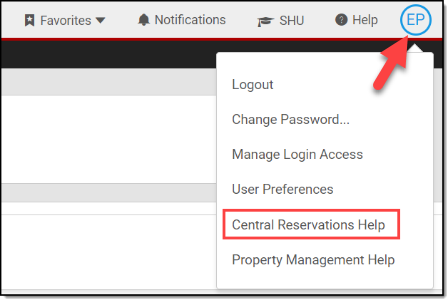
Menu and page-level items that are not searchable in the Property Management Help can be found in the SynXis Central Reservation System Help pages.
-
Access the System Menu from the avatar icon containing your initials in the header toolbar.
-
Select Central Reservations Help from the drop-down menu, and use the search bar to find the applicable topic.
